eSIM hotspot: sharing your travel data with a laptop or a travel companion
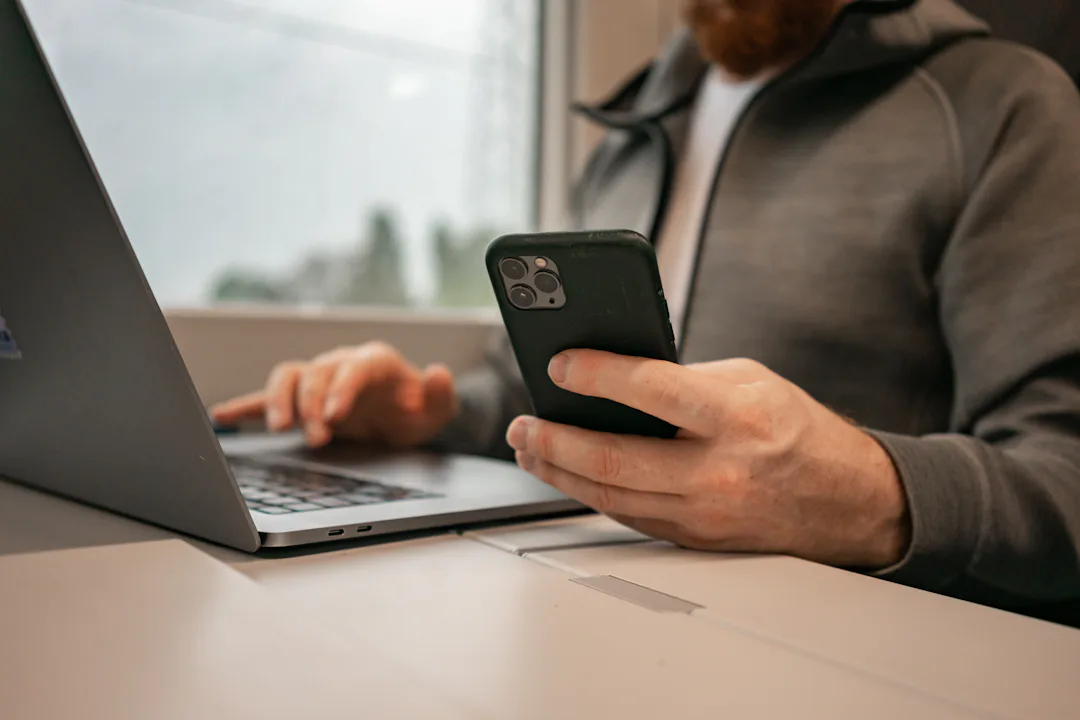
Your phone has a travel eSIM and your laptop needs to send one file, or your partner’s phone has no data abroad. A personal hotspot solves both: your phone shares its mobile connection over Wi-Fi, USB or Bluetooth. Using a travel eSIM as a hotspot works the same way as with your home SIM, with two differences worth knowing: the data comes out of a fixed allowance, and laptops use data very differently from phones. This guide covers the eSIM hotspot setup, the plan check to do first, and the laptop settings that make the difference.
How an eSIM hotspot works
A hotspot shares whichever line your phone uses for mobile data. If the travel eSIM is set as the data line, as it should be abroad, every device on your hotspot uses the eSIM’s data. Your home SIM isn’t involved, as long as its data roaming is off. Not sure which line carries data? Our guide to dual SIM shows where to check.
Everything a connected device downloads counts against your plan: a laptop’s updates, a tablet’s app downloads, a friend’s video calls. The phone sharing the connection pays for all of it.
Check the plan before you rely on it
Not every mobile plan treats hotspot use the same way; Google’s Android help notes that some carriers restrict tethering. For travel eSIMs, the plan page in the Visomu app shows the supplier’s hotspot rule in the plan details, under “Hotspot”, wherever the plan has one. Read it before you buy if you know you’ll work from a laptop.
Also check what happens when the data runs out: the plan details say whether data stops until you top up, and whether the plan can be topped up at all.
Turning on the hotspot
iPhone
- Make sure the travel eSIM is the line for mobile data and has data roaming on.
- Go to Settings › Personal Hotspot (the first time it may be under Settings › Mobile Service or Cellular, as Set Up Personal Hotspot).
- Turn on Allow Others to Join and note the Wi-Fi name and password shown on that screen.
- Connect the laptop or other phone to that Wi-Fi network.
If an older device can’t see or join the hotspot, Apple suggests turning on Maximize Compatibility on the same screen (iPhone 12 and later). It limits the hotspot to the 2.4 GHz band, which works with more devices but can be slower and less secure, so turn it off again when you don’t need it.
Android
- Check that the travel eSIM is the SIM for mobile data and has roaming on.
- Swipe down from the top of the screen, touch and hold Hotspot, and turn on Wi-Fi hotspot. The name and password are on the same screen.
- For a cable connection, connect the phone by USB and turn on USB tethering there instead. Google notes that Macs can’t tether to an Android phone over USB, so use Wi-Fi with a Mac.
Menu names vary by brand and Android version; on Samsung phones the hotspot sits under Connections.
Why a laptop on an eSIM hotspot uses so much data
A phone knows it’s on mobile data and holds back. A laptop usually thinks it’s on ordinary Wi-Fi and does everything it saves up for Wi-Fi: system updates, app updates, cloud backups, photo syncing, and video that starts playing by itself in the browser.
Some reference points from the services themselves, all approximate:
- Video calls: Zoom recommends about 1.2 Mbps in each direction for a one-to-one call in 720p HD. Over an hour that comes to roughly half a gigabyte each way. The UK operator EE gives 90 MB to 1.4 GB an hour for video calls, depending on quality.
- Web browsing: EE puts it at 1 to 4 MB a minute.
- Updates and backups: a single system update or a photo library syncing to the cloud can use more data than days of messaging.
For how much data different activities use on your phone, see how much data you need abroad.
Laptop settings that save your data
Windows
Mark the hotspot as a metered connection: Settings › Network & internet › Wi-Fi › the hotspot’s network › Metered connection. Windows treats Wi-Fi as unmetered by default, and a metered connection limits background downloads such as updates. Windows remembers it for that network, so it’s set for the rest of the trip.
Mac
Open the hotspot network’s Details in Wi-Fi settings and turn on Low Data Mode. Apple describes it as reducing data use over that Wi-Fi network.
On any laptop
- Pause cloud sync and backup apps while you’re on the hotspot, and resume them on hotel Wi-Fi.
- Turn off automatic updates for games, app stores and large programs, or postpone them.
- Close browser tabs that refresh or play video on their own.
- In video calls, turn your camera off when you don’t need it, or lower the video quality.
- Disconnect the laptop from the hotspot when you’re done, or turn the hotspot off on your phone.
Sharing with a travel companion
A hotspot is a quick fix when a friend’s phone has no data, but it means your plan pays for their use and their phone has to stay within Wi-Fi range of yours. For a whole trip it’s usually easier if each traveller has their own eSIM: each gets their own allowance and usage counter, and nobody drains anyone else’s plan. If you do share, keep an eye on the usage counter in the app, and remember that the app tells you when data runs low.
If the hotspot doesn’t work
- Check first that the phone itself has mobile data on the eSIM: open a web page on the phone.
- Restart both the phone sharing the connection and the device trying to join, and make sure the phone runs the latest system version.
- On iPhone, stay on the Personal Hotspot screen while the other device connects, and try Maximize Compatibility.
- As a last resort Apple suggests resetting network settings, but that also clears saved Wi-Fi networks and passwords, mobile settings and APN settings, so try everything else first.
If the phone itself has no data, start with our eSIM troubleshooting guide, and if that doesn’t help, tap “Mail us” in the app.
Battery and practical tips
- Sharing a connection makes your phone work harder, so keep it charging, from the laptop or a power bank, during longer sessions.
- Use a strong hotspot password and don’t share it beyond the people who need it.
- Do the heavy jobs, like big downloads and backups, on hotel or café Wi-Fi rather than the hotspot.
- If you know you’ll work remotely, pick a plan with room to spare. The plan wizard in the app has an option for a laptop on the hotspot.
Frequently asked
Can I use a travel eSIM as a hotspot?
Usually yes: your phone’s hotspot shares whichever line is set for mobile data, including a travel eSIM. Some plans have a hotspot rule from the supplier; where they do, the plan details in the Visomu app show it under Hotspot. Check it before you buy if you plan to work from a laptop.
Does hotspot data come from my home SIM or the eSIM?
From the line set for mobile data. With the travel eSIM set as the data line and data roaming off on your home SIM, everything shared through the hotspot comes out of the eSIM’s plan.
Why did my laptop use so much data?
Laptops usually treat a hotspot like ordinary Wi-Fi and run updates, cloud backups and syncing in the background. Mark the hotspot as a metered connection on Windows, turn on Low Data Mode for that network on a Mac, and pause sync apps while you’re connected.
Can I connect a Mac to an Android hotspot by cable?
Not over USB: Google notes that Macs can’t tether to Android phones over USB. Connect the Mac over the phone’s Wi-Fi hotspot instead.
How do I see how much data the hotspot used?
The usage counter in the Visomu app shows what your eSIM has used, including everything shared through the hotspot, and the app tells you when data runs low.