Dual SIM explained: two lines on one phone, and which one does what
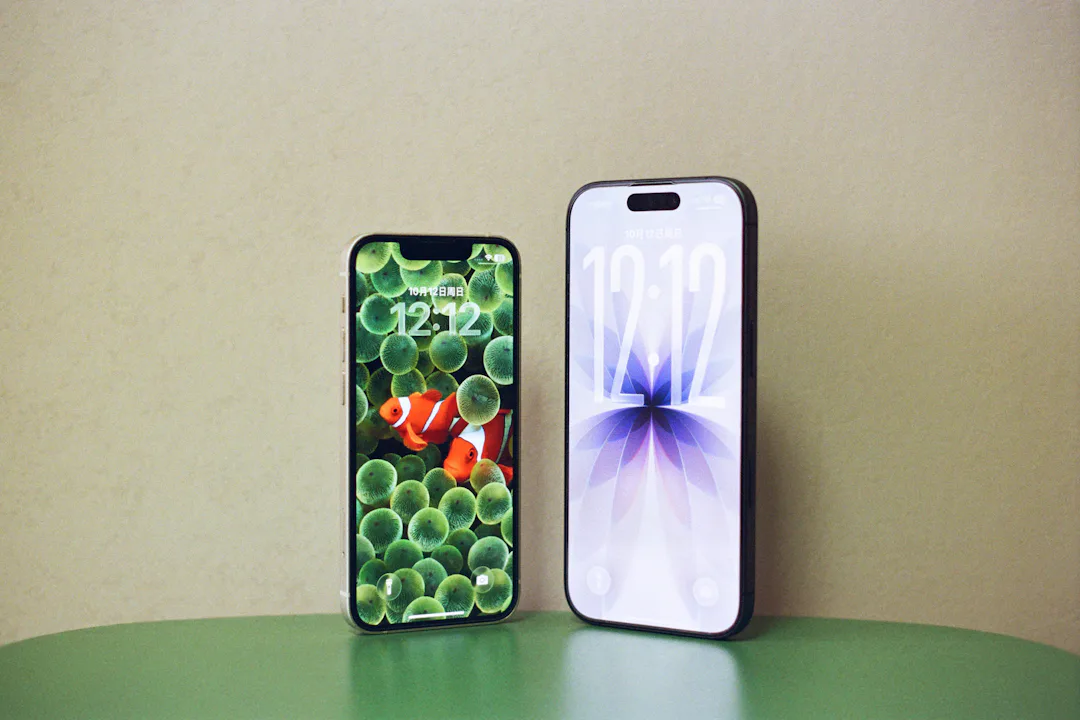
A travel eSIM only works the way you expect if you understand one thing: your phone is now running two lines at once. That’s what dual SIM means. One line is your own number, the other is the travel eSIM’s data. Each has its own settings, and the phone needs to know which line to use for what. Get those few choices right and everything just works: data from the eSIM, calls and texts on your own number, no surprise bill. This guide explains how dual SIM works on iPhone and Android, without assuming you’ve ever opened these settings.
What dual SIM means
A dual SIM phone holds two mobile lines at the same time. Each line is a SIM: a physical card in the SIM tray or an eSIM stored on the phone. The usual combinations are:
- A physical SIM plus an eSIM. Google’s Pixel phones from the Pixel 3a onwards work this way, as do many other Android phones and iPhones with a SIM tray.
- Two eSIMs. According to Apple, iPhone 13 models and later can use two eSIMs at the same time.
- eSIM only. Some phones have no SIM tray at all. In the US, for example, Google says Pixel 10 phones (except the Pixel 10 Pro Fold) only use eSIMs.
A phone can often keep more eSIMs installed than it uses at once. Lines you don’t need are switched off, not deleted, and you can switch them on again later.
Two lines, one data connection
Both lines can be on and reachable, but only one line uses mobile data at a time; Apple and Google both say so. This is the key to travelling with a travel eSIM:
- Your own SIM stays on for calls and texts, so bank codes and calls still reach your usual number.
- The travel eSIM is set as the line for mobile data, so maps, messaging apps and browsing go through it.
Travel eSIMs are data only, with no phone number. Messaging apps such as WhatsApp keep working with your usual account over the eSIM’s data, because the account belongs to your number, not to the line carrying the data. Our guide to keeping WhatsApp and your number goes into that.
The four choices that matter
1. Labels
Give each line a clear name, such as “Personal” and “Travel”, so you always know which one you’re looking at. The labels show up in the settings, in your call log and when you choose a line.
2. Default line for calls and texts
This is the line used when you call or text someone. Keep it on your own number. If the travel eSIM were the default, calls and texts would fail, because it has no number. On iPhone you can also choose which line iMessage and FaceTime use, and give a contact their own preferred line.
3. Line for mobile data
Abroad, set this to the travel eSIM. At home, set it back to your own SIM.
4. Data roaming and automatic switching
Data roaming is set per line. The travel eSIM usually needs it on, because it connects to local networks abroad; the app asks you to turn it on. Your own SIM should have it off, so it can’t use data abroad by accident. Also leave automatic data switching off: it lets the phone use your own line’s data when its coverage looks better, which can mean roaming charges.
Dual SIM settings on iPhone
- Labels: Settings › Mobile Service (or Mobile Data; Cellular in the US) › tap the line › Mobile Plan Label (Cellular Plan Label in the US).
- Data line: Settings › Mobile Service › Mobile Data, then tap the travel eSIM.
- Data roaming: tap the line, then Mobile Data Options › Data Roaming: on for the travel eSIM, off for your own line.
- Automatic switching: Allow Mobile Data Switching, under Mobile Data, stays off.
- A line on or off: tap the line and use Turn On This Line.
From iOS 26, an iPhone may show a “Turn On Travel eSIM” notification when you arrive. It offers “Travel eSIM Only” or “Travel eSIM and Current eSIM”. Apple notes that if you keep both lines on, the travel eSIM handles data, but you may still incur roaming fees on your home line. Choose the second option if you want your number reachable, and keep data roaming off on your own line. When you’re back home, the iPhone may switch your home line back on its own, depending on the country; if not, do it in Settings.
Dual SIM settings on Android
On a Google Pixel, everything is under Settings › Network & internet › SIMs:
- Under your primary SIMs, tap Mobile data to choose the travel eSIM and Calls and Texts to choose your own SIM.
- Tap each SIM to set Roaming: on for the eSIM, off for your own SIM.
- Leave options that move data to the other SIM, such as automatic data switching or Data during calls, off while abroad.
On Samsung Galaxy phones, go to Settings › Connections › SIM manager (SIM card manager on older versions) and set the preferred SIM for calls, messages and mobile data there. Menu names vary by brand and Android version, but the four choices are the same everywhere. Step-by-step help is in our guides for iPhone and Android.
Calls while you use the travel eSIM
With dual SIM, calls to your own number still arrive while the eSIM handles data. A few details are worth knowing:
- Receiving and making calls on your own line abroad is charged by your operator under its roaming terms. Inside the EU and EEA, roam like at home rules apply to EU plans; elsewhere, check your operator’s rates.
- During a call on one line, the other line may not be able to take a call. Apple explains that on iPhone this depends on Wi-Fi Calling and the data-switching setting.
- On a Pixel, Google says all data goes through the calling SIM during a phone call, unless Data during calls is on. Expect messaging apps to pause briefly while you’re on a regular call.
Mix-ups we see most
- Data still on your own SIM. The eSIM is installed, but the phone uses your own line for data, with roaming charges. Fix: set the data line to the eSIM.
- The travel eSIM set as default for calls. Calls and texts fail, because it has no number. Fix: set your own SIM as default.
- The eSIM line switched off. It was off to save validity before the trip and nobody turned it on again. Fix: turn on the line.
- Roaming off on the eSIM. The eSIM shows signal but no data. Fix: turn on data roaming for the eSIM only.
Still no connection? Work through our eSIM troubleshooting guide.
After the trip
- Set mobile data back to your own SIM, and turn its data roaming back on if you need it at home.
- Turn the travel eSIM line off.
- Only delete the travel eSIM once its plan has ended. Until then, a line that’s off costs you nothing and stays ready.
Frequently asked
Can I use my own SIM and a travel eSIM at the same time?
Yes, on a dual SIM phone. Keep your own SIM on as the default line for calls and texts, set mobile data to the travel eSIM, and turn data roaming on for the eSIM and off for your own SIM.
Can both lines use mobile data at once?
No. Both lines can be on and reachable, but only one line uses mobile data at a time. Choose the travel eSIM as the data line while you’re abroad.
Can an iPhone use two eSIMs at once?
According to Apple, iPhone 13 models and later can use two eSIMs at the same time, as well as a physical SIM with an eSIM. A phone can keep more eSIMs installed than it uses at once; switch the ones you don’t need off.
Why can’t I make calls on the travel eSIM?
Travel eSIMs are data only and have no phone number. Make sure your own SIM is the default line for calls and texts. You can still call over data with messaging apps.
Should I delete the travel eSIM after my trip?
Only once its plan has ended. Until then, switching the line off is enough: it stays on your phone, costs nothing and is ready if you need it again.